Backup Assistant
Automatically back up files when you open them and before you modify them.
Time saving row and column commands for Microsoft Excel.
The following are just a few of the time-saving row and column features added by the Spreadsheet Assistant that make Microsoft Excel easier to use:
The following is the Row and Column Assistants menu that appears when you click on the Row and Column Assistants button. Any of the features can be added to Excel’s quick access toolbar for instant use any time.
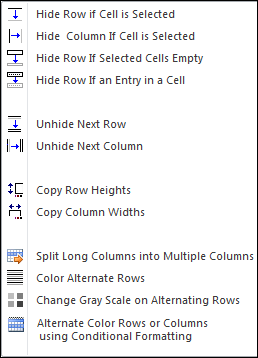
The Format Row and Column Assistants make hiding and un-hiding rows very easy — especially un-hiding the next row or column. We often use the Conditional Select Assistants to select the cells in a column we want to hide, then come to this menu and choose Hide Row if Cell is Selected to hide them. For example, on a worksheet of accounts and their values, we will select all the low-value accounts and hide their rows so we just see the high-value accounts.
Return to the Spreadsheet Assistant overview to explore all the other assistant menus.
Automatically back up files when you open them and before you modify them.
Create your own toolbar of buttons to quickly format cells and rows.
Quickly find and go to any column via a descriptive list of all columns.
See a list of the past 100 files you have opened and re-open any of them.
Move from sheet to sheet with ease and view all your sheets in one click.
Extract rows of data into columns for easy review and printing.