Backup Assistant
Automatically back up files when you open them and before you modify them.
Time-saving selecting features added to Microsoft Excel.
The following are just a few of the time-saving selecting features added by the Spreadsheet Assistant that make Microsoft Excel easier to use:
The following is the Select Assistants menu that appears when you click on the Select Assistants button. Any of the features can be added to Excel’s quick access toolbar for instant use any time.
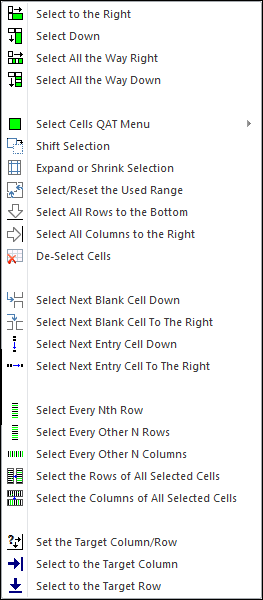
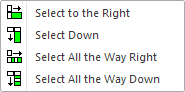
The first four features on the Select Assistants menu allow you to select down or to the right without the screen moving! You can add these buttons individually to Excel’s quick access toolbar (by right-clicking on the buttons), or, if you are space-limited on your QAT, you can add the Select Cells QAT menu, which expands into a submenu.
These features do selections without the screen moving!
We like to add the select right and select down buttons to the quick access toolbar so we can use them instantly, no matter what Excel tab we are on.
The last three select assistants — Set the target column/row, Select to the Target Column, and Select to the Target Row — have saved us a lot of time when we are doing intense editing and must do many selections to specific rows or columns.
Return to the Spreadsheet Assistant overview to explore all the other assistant menus.
Automatically back up files when you open them and before you modify them.
Create your own toolbar of buttons to quickly and easily format cells and rows.
Quickly find and go to any column on a worksheet via a descriptive list.
See a list of the past 100 files you have opened and easily re-open any file.
Move from sheet to sheet with ease. View a list of all your sheets with one click.
Extract rows of data into columns for easy review and printing.