CSV File Creator
Create CSV files the easy way.
An add-in for Microsoft Excel that checks a worksheet list against a list of words or phrases.
The List Searcher add-in for Microsoft Excel will quickly and easily search and check a worksheet list to see if it contains matches to words or phrases in a second list.
“Thank you very much Robert! It is working exactly how I needed! I am looking forward to purchasing more Excel add-ins with you. Congratulations to you and your company!” — Henrique Jardim
You can have the List Searcher color or mark (insert a phrase in a column) matching rows for follow-up, or have it copy or delete matching rows. If you would rather have the List Searcher identify the entries that do not contain matches to your words or phrases, it has options to do that too.
The main dialog of the List Searcher looks like the following:
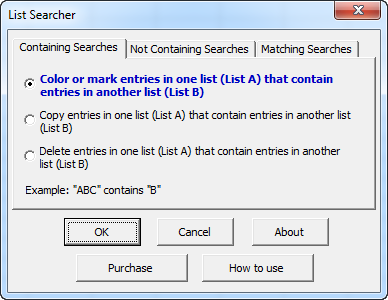
The first option allows you to color or mark matching entries (with a cell entry in a column you specify) between two lists. The last option deletes entries in one list that contain entries in another list. For example, you may have a list of e-mail addresses and want to remove bad e-mail addresses from it: your addresses would be list A, the bad addresses list B. The list-to-list comparison finds containing matches — if one of the entries in your bad list is “JohnDoe”, it would match JohnDoeIII@gmail.com.
Users have used the List Searcher to find survey responses whose comments include the words “gold”, “stock”, or “bonds”. Others have used it to check e-mail addresses for domains they do not want to send e-mail to, for words like spam, bad, and remove.
The List Searcher is menu-driven for ease of use. It works by first having you identify the range to be searched. You can either select just the top cells of a range or select the whole range. If you select the top cells, the List Searcher suggests all rows to the bottom of the data, saving you from pre-selecting all the cells.
After getting the range to search, you are asked whether to specify a range of cells containing the words and phrases to be searched for, or to just type in a list. Typing in a list is the easy way to do quick searches; specifying a range lets you search your list for hundreds of keywords. The following illustrates a typical (small) user list:
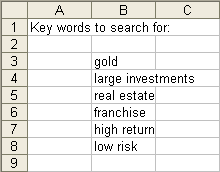
Once the List Searcher has the range to be searched and the keywords and phrases to search for, it displays a dialog of coloring and marking options if you select an option to color and mark entries. If the copy option is selected, a dialog is presented to specify the destination. In all options a confirmation dialog is presented. The List Searcher can search tens of thousands of entries in seconds.
To learn how to use the List Searcher, click the “How to use” button on the main dialog. This opens a help and exercise file with step-by-step instructions. And if you need help, we are available 7 days a week — just call the phone number found at the top of every page. We are located in the U.S. and enjoy talking to our customers.
Create CSV files the easy way.
Eliminate tedious manual cleaning of data.
Quickly find and remove duplicates in one list or between two lists.
Import ASCII or text files with over a million lines.