Turning Off Move After Enter
The default setting in Excel is to move to the next cell down after you have entered a formula, number, or text string. What we have seen happens most of the time is the user then has to reselect the cell. This happens most frequently when entering a formula as the user wants to check the formula. The next most frequent time is when the user then wants to copy what was entered to other cells. Having to click back on the cell one was just in is a big waste of time!
The solution is to change the setting in Excel for this feature!
- Click File, Options, Advanced settings.
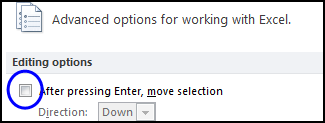
- Uncheck the setting in Edit options to turn off move after enter:
Excel does not provide an easy way to toggle this setting. However, you do have some choices:
- If you pre-select a range, then, as you edit one cell and press enter, you will automatically be taken to the next cell.
- If you have the Spreadsheet Assistant, then you can put a button on the Quick Access Toolbar
(QAT) that toggles this setting:
- Assistant Tab
- Other Options
- Right-click on Toggle Move After Enter and select add to the QAT.
- To remove from the QAT at any time, right-click on the button on the QAT and select remove.