 |
|
Questions? E-mail us
or call us 302-584-1771, 8AM to 10PM U.S. East Coast Time 7 days a week
|


|
Sensitivity Chart Creator
|
Screen shots:  |
The Sensitivity Chart Creator is an add-in for Microsoft Excel that creates sensitivity charts. It is compatible with Microsoft Excel 2010-2021 and Office 365.
The following sensitivity chart was created by the Sensitivity Chart Creator:
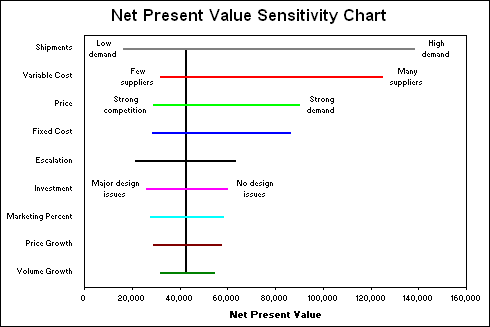
These charts are also know as tornado or fishbone charts due to their appearance. They show the sensitivity of key output variables, in this case Net Present Value, to key input cells (shipments, variable cost, to volume growth).
|
Order online from our secure service. |
|
US $29.95 |

Customers who viewed the Sensitivity Chart Creator also viewed:
- Bubble Chart Creator - Quickly and easily create bubble charts from data tables
- Cascade Chart Creator - Create cascade charts that help you explain your data.
- Multi-Cell Goal Seeker - Do goal seek on multiple cells automatically.
- Risk Analyzer - Do decision and risk analysis the easy way.
- Sensitivity Analyzer - Do numerous "what if" and sensitivity analysis cases in seconds.
| Copyright 2025 Add-ins.com LLC, all rights reserved. Spreadsheet Assistant is a registered trademark of Add-ins.com LLC. |